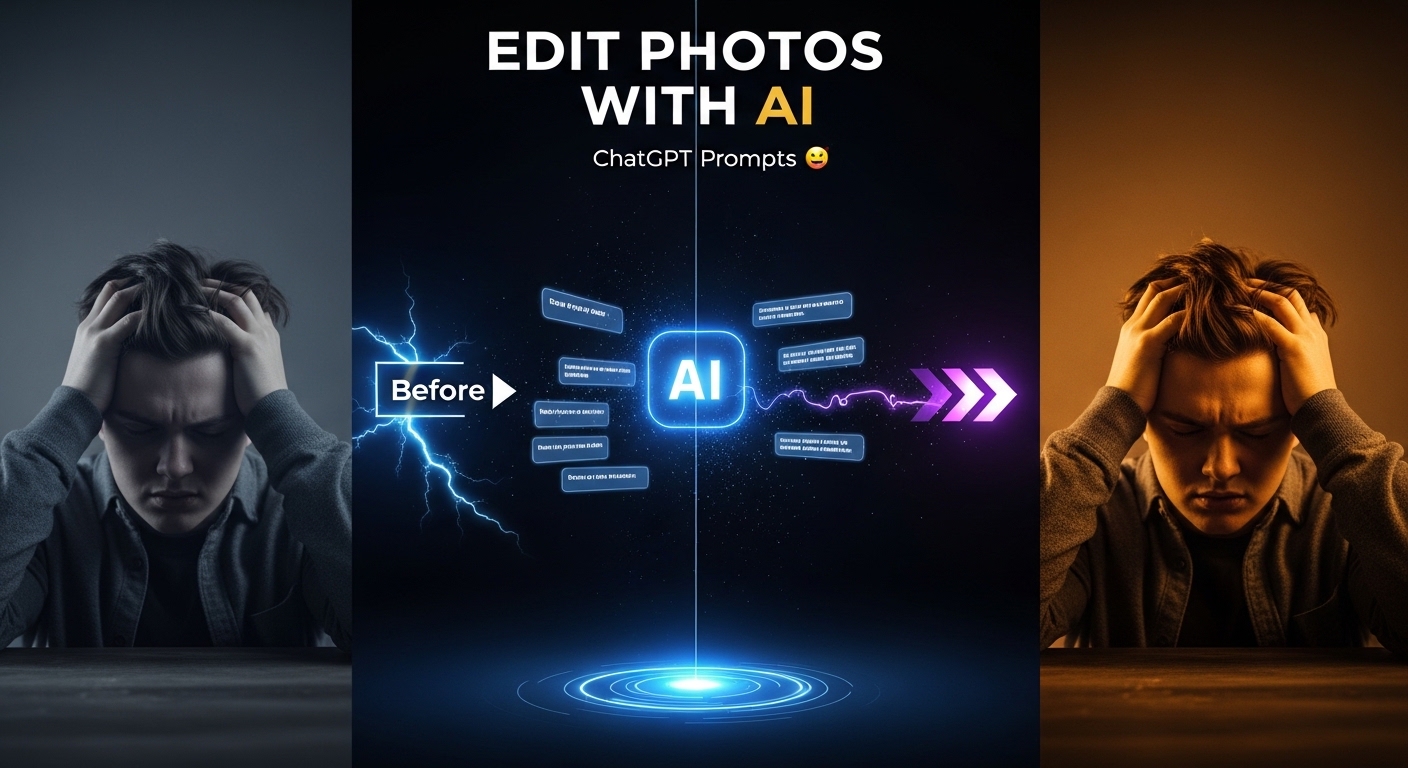
Tired of complicated Photoshop? Here’s how to edit photos like a pro using just words.
Let me tell you a little story.
Last month, I took what I thought was the perfect photo. It was golden hour, the light was hitting just right, and my dog looked like a majestic wolf in the fading sun. I was so excited.
But when I looked at the photo on my computer screen, my heart sank. It was too dark. The beautiful beam of light that made the shot special was barely visible. And in the background? A random trash can I hadn’t noticed while shooting.
I had two choices. Spend an hour watching YouTube tutorials trying to figure out Adobe Lightroom, or try something I’d been hearing about—using ChatGPT to edit my photo.
I chose the second option. And honestly? It changed everything.
Within minutes, not hours, I had exactly what I wanted. The light beam was brighter, the trash can was gone, and my dog looked like the star he is. All I did was type a few sentences.
If you’re like me—someone who loves taking photos but doesn’t love complicated editing software—you’re in the right place. Today, I’m going to share the best chatgpt prompt for photo editing that actually works, based on real testing and real results.
What Exactly Can ChatGPT Do With Your Photos?
Before we jump into the prompts, let’s talk about what ChatGPT can and can’t do. Because knowing this will save you a lot of frustration.
First, the good news. ChatGPT’s latest image model is incredibly powerful . It can:
- Brighten or darken specific parts of your photo
- Remove things you don’t want (like that trash can in my photo)
- Change backgrounds completely
- Transform your photo into different styles (like anime, vintage, or 3D figurine)
- Merge multiple photos into one seamless image
- Add or remove people and objects
- Fix lighting and colors
The key to getting what you want? Being specific. Really specific.
As one photographer discovered after editing 50 photos with ChatGPT, “Asking ChatGPT to brighten an image without being specific will produce subpar results” . The more details you give, the better your results.
The Secret Formula: How to Write a Perfect ChatGPT Photo Editing Prompt
Think of writing a prompt like giving instructions to a very smart but literal friend. You need to tell them:
- What you want to change (be specific about where in the photo)
- How much you want to change it (if it’s about brightness or color)
- What you want to keep the same
- The style or mood you’re going for
Let me show you what I mean.
Instead of:
“Make my photo brighter”
Try this:
“Brighten the beam of light in this shot by 15%, but only add 5% brightness to the rest of the image”
See the difference? The first prompt leaves everything up to ChatGPT. The second one tells it exactly what to do.
Now, let’s get into the actual prompts you can use.
10 Powerful ChatGPT Prompts for Photo Editing (Copy and Paste)
I’ve tested these prompts myself, and they work beautifully. Feel free to copy them and adjust the details for your own photos.
1. Brighten a Dark Photo (Without Overexposing It)
This is the prompt I used to fix my dog photo.
Prompt:
“Brighten the light coming through the window by 20%. Then add 10% brightness to the rest of the photo. Keep the shadows natural and don’t lose any details in the bright areas.”
Why it works: It tells ChatGPT exactly what to brighten and by how much. The “don’t lose any details” part helps prevent overexposure .
2. Remove Unwanted Objects
That trash can in my photo? Gone in seconds.
Prompt:
“Remove the [object] in the [location, e.g., bottom left corner]. Fill the space naturally with the surrounding background. Don’t change anything else in the photo.”
Real example:
“Remove the trash can on the right side of the image. Fill that area with grass and trees that match the rest of the background.”
3. Change the Sky
This is one of my favorite tricks. A boring gray sky can become a beautiful sunset.
Prompt:
“Replace the sky in this image with [describe your desired sky]. Make sure the new sky blends naturally with the lighting and colors of the rest of the photo.”
For example:
“Replace the sky with a vibrant sunset with pink and orange clouds. Make sure the light on the ground matches the new sky color.”
4. Turn a Photo into Studio Ghibli Anime Style
Prompt:
“Transform this photo into a Studio Ghibli–inspired illustration. Use soft pastel colors, hand-painted textures, and gentle lighting. Keep the main subject recognizable but add dreamy, magical details.”
5. Fix Glare on a Screen or Glasses
Ever taken a photo of someone with glasses and gotten that annoying glare? This fixes it.
Prompt:
“Remove the glare on the [location, e.g., lower right of the glasses lens]. Keep the natural reflection of the eyes visible and don’t change the facial expression.”
6. Merge Multiple Photos into One
Want a group photo where everyone looks good? Take individual photos and merge them.
Prompt:
“Combine these multiple photos into one seamless image. Blend the subjects, colors, and lighting naturally so they appear as part of a single scene. Keep realistic proportions.”
7. Add a Blurred Background (Bokeh Effect)
This makes your subject pop, just like professional portrait photos.
Prompt:
“Apply a soft blur effect to the background. Keep the person in front perfectly clear. Make the background smoothly out of focus while keeping the lighting natural.”
8. Turn Your Pet into a Human (or Your Human into a Cartoon)
This one is just for fun, and the results are hilarious.
Prompt:
“Transform this pet photo into a stylized human-inspired character that reflects my pet’s main features (color patterns, fur texture, personality). Keep it in a cute, cartoon style.”
9. Create a Time-Lapse Prediction
Curious what a plant will look like in a week? Or how a sunset will evolve?
Prompt:
“Generate an image showing how this scene might look after one week. Keep the same composition but add subtle changes like different lighting or new details.”
10. Fix Skin and Remove Blemishes
This is perfect for portrait photos where you want to look your best without looking fake.
Prompt:
“Gently even out skin tone and remove temporary blemishes. Keep natural skin texture, pores, and freckles. Don’t change facial features or make the skin look plastic.”
Real Case Study: How I Fixed a Family Photo
Let me share another real example. A few weeks ago, my family tried to take a nice holiday photo. My nephew was making a silly face (as kids do), my mom blinked, and my dad was looking in a completely different direction.
Normally, that photo would go straight to the trash. But I decided to try ChatGPT.
First, I uploaded the photo and typed: “Combine the best parts from these three photos into one perfect family photo.”
Then I uploaded the three different shots and described exactly what I wanted: “Take my mom’s smiling face from photo 2, my nephew’s normal expression from photo 1, and keep my dad looking at the camera from photo 3. Blend them naturally so it looks like everyone was smiling at the same time.”
The result? A perfect family photo that never actually happened in real life. My mom framed it.
Tips from My Mistakes (So You Don’t Make the Same Ones)
I’ve made plenty of mistakes while learning to edit photos with ChatGPT. Here’s what I’ve learned:
Mistake 1: Being Too Vague
When I first started, I typed things like “make this look better.” ChatGPT has no idea what “better” means to you.
Fix: Be specific. “Better” could mean brighter, sharper, more colorful, or less cluttered. Say exactly what you want.
Mistake 2: Not Using “Don’t Change Anything Else”
This is so important. If you don’t add this, ChatGPT might change things you didn’t ask for.
Fix: Always add something like “Don’t change anything else about the photo” or “Keep all other details exactly the same.”
Mistake 3: Forgetting About Location
If you want something removed or changed, you need to say where it is.
Fix: Use directions like “in the top right corner,” “on the left side of the image,” or “behind the person in the front.”
Mistake 4: Expecting Perfect Results on the First Try
Sometimes, the first edit isn’t quite right. That’s okay.
Fix: Think of it as a conversation. If something isn’t right, just type “make the brightness a little less” or “the sky looks too purple, make it more natural.”
The Best ChatGPT Photo Editing Prompts for Different Situations
Let me break this down by what you’re trying to achieve.
For Portrait Photos:
- “Even out skin tone naturally, keep freckles and skin texture”
- “Brighten eyes slightly and make them sparkle”
- “Remove temporary blemishes but keep all facial features exactly the same”
- “Add a soft, warm glow to the skin”
For Landscape Photos:
- “Make the colors more vibrant but keep them looking natural”
- “Brighten the shadows to show more detail in the dark areas”
- “Add more contrast to make the mountains stand out”
- “Turn this into a vintage postcard style”
For Product Photos:
- “Remove the background and put the product on a clean white surface”
- “Make the lighting even with no harsh shadows”
- “Enhance the texture of the fabric so you can see the details”
For Fun and Creative Edits:
- “Turn me into a Funko Pop figure”
- “Create a 2×2 grid of Chibi-style stickers from this photo”
- “Transform this into a 1980s-style movie poster”
- “Make this look like a painting by Van Gogh”
How to Actually Do This: Step by Step
If you’ve never edited a photo with ChatGPT before, here’s exactly how to do it:
Step 1: Open ChatGPT (you’ll need a subscription that includes the image features).
Step 2: Look for the paperclip icon or “+” button to upload your photo.
Step 3: Select the photo you want to edit from your computer or phone.
Step 4: Type your prompt in the chat box. Use one of the prompts above, but adjust it for your specific photo.
Step 5: Wait a few seconds. ChatGPT will process your request and show you the new image.
Step 6: If it’s not quite right, just type what you want adjusted. For example: “The edit looks good, but make the lighting a bit warmer.”
Step 7: Save your edited photo by clicking on it and choosing “save image” .
A Note About New Features
As of December 2025, ChatGPT’s image editing has gotten significantly better. OpenAI released a new version that’s up to four times faster and follows instructions more precisely than before .
The new model is especially good at:
- Keeping faces consistent across multiple edits
- Adding or removing small details exactly where you want them
- Creating complex scenes with multiple elements
- Rendering text clearly (like on signs or product labels)
Final Thoughts: You Don’t Need to Be a Pro
When I look back at the photos I used to take—the ones that sat untouched because I didn’t know how to edit them—I realize how much I was missing. Not because the photos were bad, but because I thought editing had to be hard.
ChatGPT changed that for me. And it can change it for you too.
The best chatgpt prompt for photo editing isn’t a magic formula. It’s simply being clear about what you want. Describe your photo like you’re telling a friend about it. Point out what you love and what you’d change. Be specific about colors, lighting, and locations.
Start with one photo today. Try one of the prompts I shared. See what happens. I think you’ll be surprised at what you can create.
Now go make your photos shine.
Have you tried editing photos with ChatGPT? I’d love to hear about your results. Share your experience in the comments below!